


User Navigation
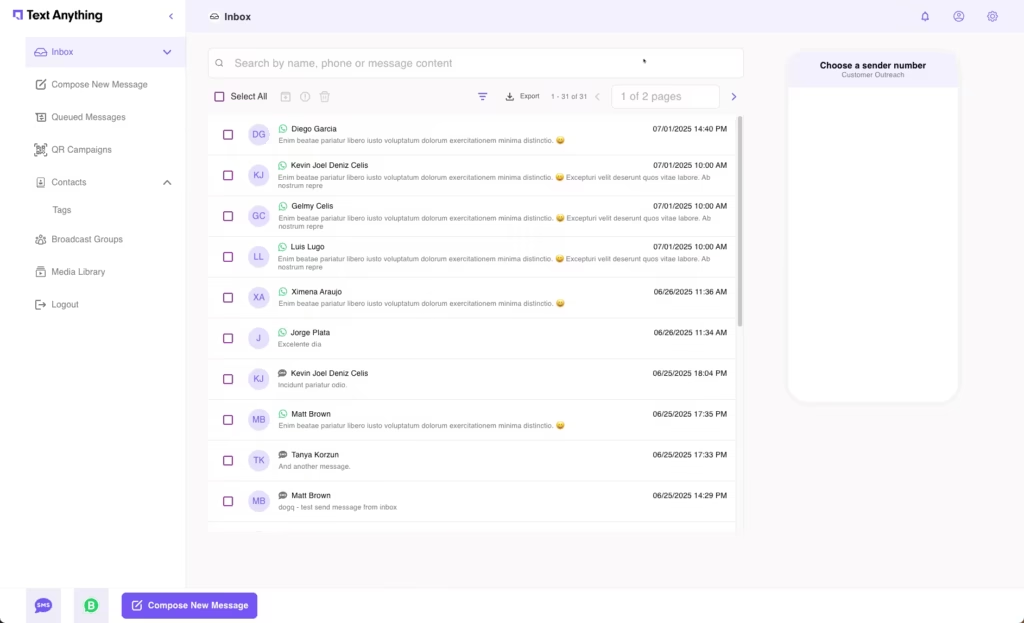
The Text Anything User Interface is the messaging side of Text Anything. It allows users to create, send, respond to incoming text and WhatsApp messages. It is designed to allow users to organize incoming messages, create notes, organize contacts by “tags” or “broadcast groups”. Users can send individual messages but also schedule “Broadcasts” wherein they may send a message to a group of contacts. Unlike Drip Campaigns, Broadcasts are designed a single message sent one time – either now or sometime in the future. Let’s look at the different elements of the User Interface.
Inbox
Compose New Message
- Queued Messages
- QR Campaigns
- Contacts
- Broadcast Groups
- Media Library
Inbox
Text Anything’s inbox serves as a centralized dashboard for managing SMS and WhatsApp messages, offering a clean interface to view, compose, and organize communications. It includes sub-features like Draft for saving messages, Archived for storing older conversations, Spam for flagging unwanted messages, and All Messages for a complete log of sent and received interactions. Users can also compose individual or group messages, with options to send immediately or schedule for later, and monitor queued messages pending delivery.
Message Composer
Text Anything’s message composer offers a user-friendly interface for creating SMS and WhatsApp messages, enabling both individual and group messaging with support for message templates. Users can personalize content using tags, broadcast groups, or pre-defined templates, and send messages immediately or schedule them for later delivery. It also integrates with the media library to include images, videos, or PDFs (up to 5MB) for MMS and WhatsApp messages where supported.
The Text Anything web application’s message composer offers a user-friendly interface for creating SMS and WhatsApp messages, enabling both individual and group messaging with support for message templates. Users can personalize content using tags, broadcast groups, or pre-defined templates, and send messages immediately or schedule them for later delivery. It also integrates with the media library to include images, videos, or PDFs (up to 5MB) for MMS and WhatsApp messages where supported.
QR Campaigns
Ignite customer engagement with QR campaigns, allowing you to launch up to 3 (Starter), 10 (Growth), or 100 (Premium) dynamic campaigns featuring scannable QR codes that link to tailored landing pages. These codes effortlessly capture contact details, instantly adding leads to your campaigns for targeted SMS or WhatsApp follow-ups. Perfect for websites, print ads, or promotional videos, this powerful tool supercharges lead generation and drives measurable results with a personal touch.
Ignite customer engagement with QR campaigns, allowing you to launch up to 3 (Starter), 10 (Growth), or 100 (Premium) dynamic campaigns featuring scannable QR codes that link to tailored landing pages. These codes effortlessly capture contact details, instantly adding leads to your campaigns for targeted SMS or WhatsApp follow-ups. Perfect for websites, print ads, or promotional videos, this powerful tool supercharges lead generation and drives measurable results with a personal touch.
Contacts
Supercharge your outreach with the Contacts tab, where our intuitive contact import wizard lets you effortlessly upload up to 50,000 contacts or more in just minutes via a simple CSV file. Organize your audience with customizable tags and broadcast groups for targeted SMS or WhatsApp campaigns, driving personalized engagement. This powerful feature streamlines contact management, turning your leads into conversions with ease and speed.
Supercharge your outreach with the Contacts tab, where our intuitive contact import wizard lets you effortlessly upload up to 50,000 contacts or more in just minutes via a simple CSV file. Organize your audience with customizable tags and broadcast groups for targeted SMS or WhatsApp campaigns, driving personalized engagement. This powerful feature streamlines contact management, turning your leads into conversions with ease and speed.
Broadcast Groups
Amplify your marketing impact with the Broadcast Groups tab, where you can effortlessly create and manage targeted groups to send personalized SMS or WhatsApp campaigns in seconds. With our intuitive interface, import up to 50,000 contacts or more via a simple CSV wizard, segment them into dynamic broadcast groups, and unleash high-impact messages that drive engagement and conversions. This powerful tool makes mass messaging a breeze, delivering results with precision and speed.
Amplify your marketing impact with the Broadcast Groups tab, where you can effortlessly create and manage targeted groups to send personalized SMS or WhatsApp campaigns in seconds. With our intuitive interface, import up to 50,000 contacts or more via a simple CSV wizard, segment them into dynamic broadcast groups, and unleash high-impact messages that drive engagement and conversions. This powerful tool makes mass messaging a breeze, delivering results with precision and speed.
Media Library
The Media library is a repo for all your sent images and files. Easily upload and retrieve images from the repo for future use in individual messages, broadcasts or templates.
Inbox & Submenus
The Inbox is where all your conversations appear and the heart of the application. It has several sub-menus though you will also find useful:
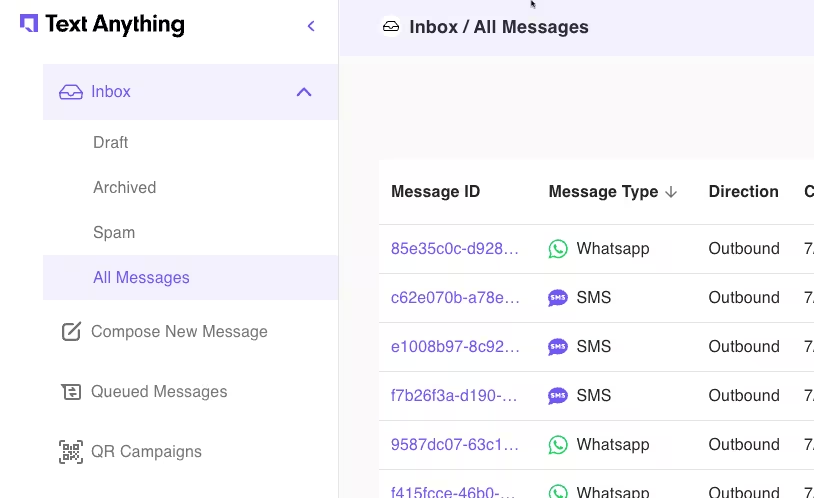
Draft At any time you can save a message as a draft to send later. All messages saved as drafts will appear here.
Archived This is used for cleaning up your Inbox. You can easily select one or more conversations from your inbox and archive them to clean up your workspace.
Spam It happens. When it happens to you, simply mark those messages as spam and they will be moved out of the Inbox along with any subsequent spam messages.
All Messages This is a complete history of every message of every type sent and received.
All Messages
All Messages This is a complete history of every message of every type sent and received. It allows you to see the type, direction, sent by user, to and from numbers, time stamp and status. It is helpful in troubleshooting for failed messages to land lines or if there is a service outage.
This section also supports multiple filter options.
Compose
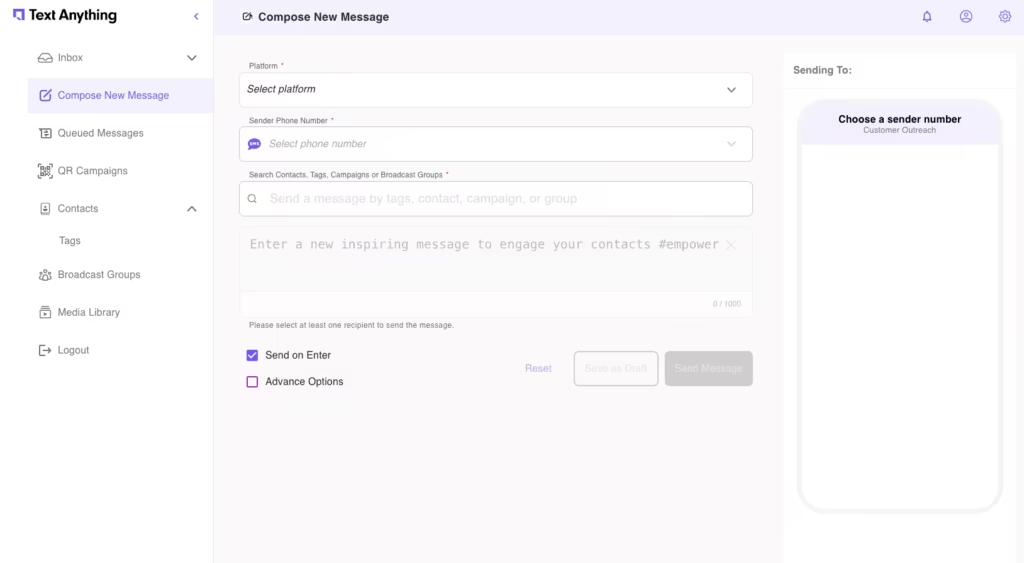
The Compose Tab is where you send individual messages. When responding to a message, you can simply click and respond, however for a first message, if your account supports texting and WhatsApp or texting with multiple phone numbers, you will need to:
- Select the Platform – Texting or WhatsApp
- Pick your number (for texting with multiple numbers)
- Choose the recipient(s),and
- Send now or schedule for later (Advanced Options)
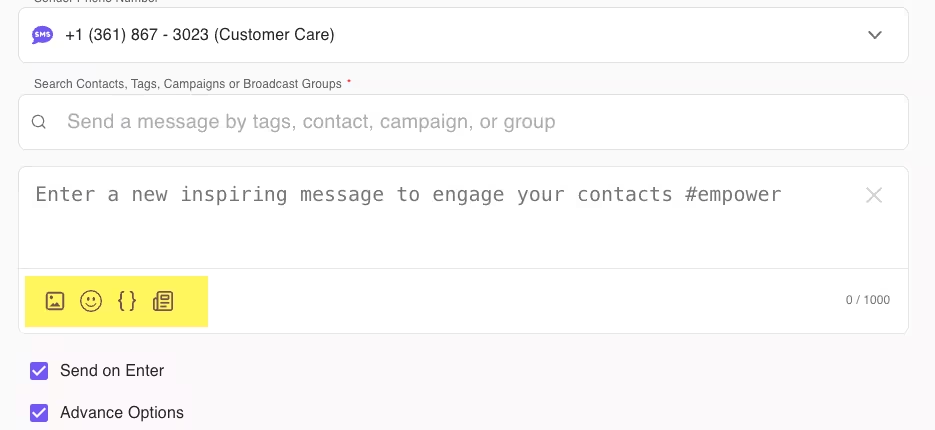
Once you select an audience (for texting), the compose panel gives you options for:
- Attaching images
- Emojis
- Merge fields, i.e., “First Name”
- Using Templates
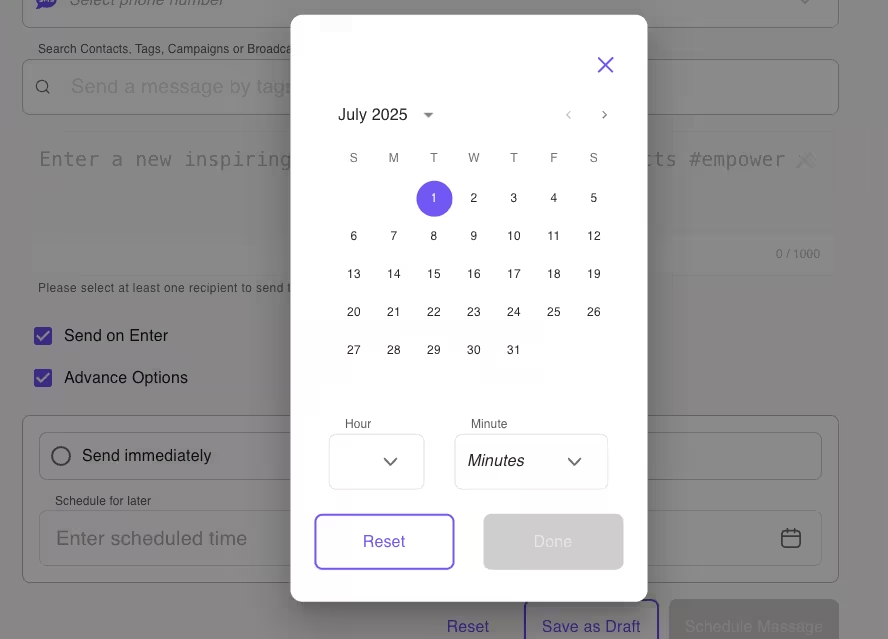
If you choose to “send later” you are prompted to select a date and time. When you press “Done” your message will now appear in “Queued Messages” where you have the option to delete it before the send date.
Queued Messages
The Queued Messages tab shows you all messages. that users created using the “Send Later” feature.
These messages may be deleted but not edited once they are saved and put in the queue.