< All Topics
Print

QR Campaigns

QR Campaigns

You can get contacts into Text Anything three ways:
 
  1. Upload – Upload contacts by CSV using the import wizard.  This works great for bulk lists.
  2. Opt-In – You can set up a number where contacts text and opt-in to your services.
  3. QR Codes – Contacts can join by scanning a QR code which launches a mini customizable web page where they enter in their information.

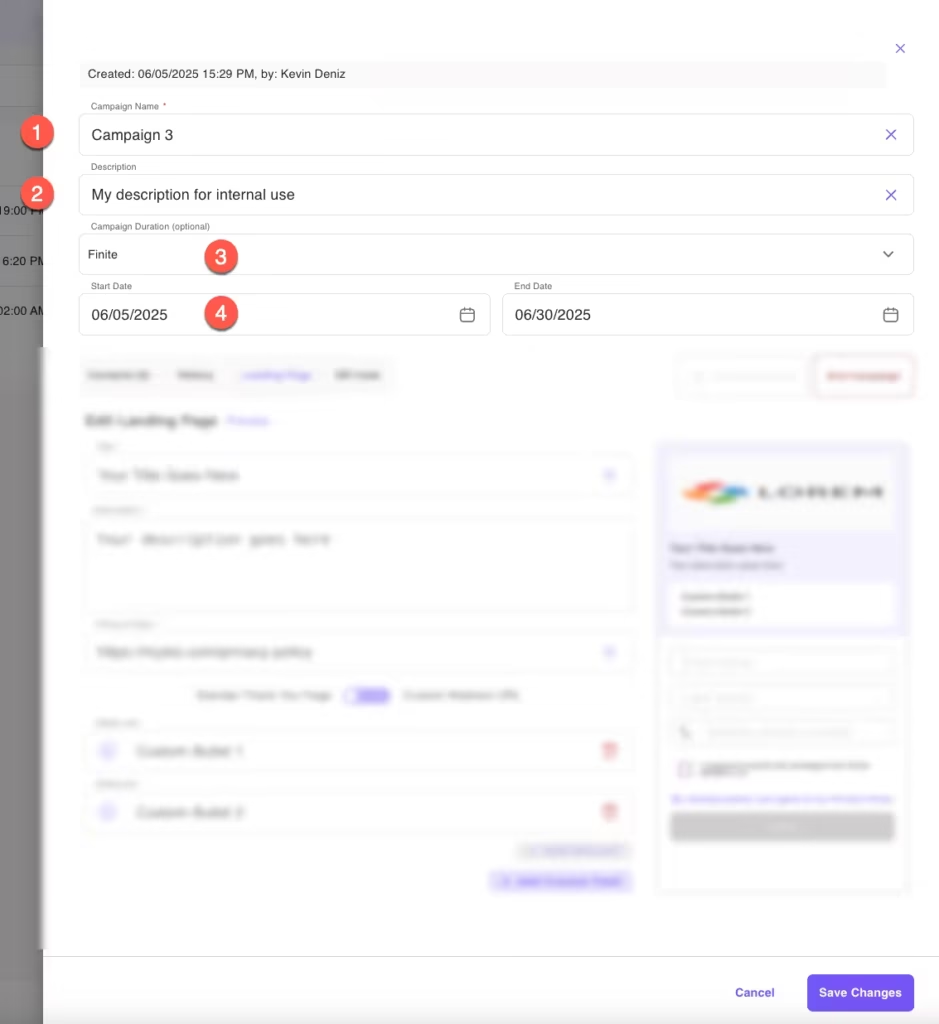
In the top section of the QR Campaign creator:

 
  1. Name your Campaign
  2. Add a Description (for internal use)
  3. Your campaign can be Finite or Infinite
    1. Finite Campaigns have a start and end date
    2. Infinite Campaigns have only a start date

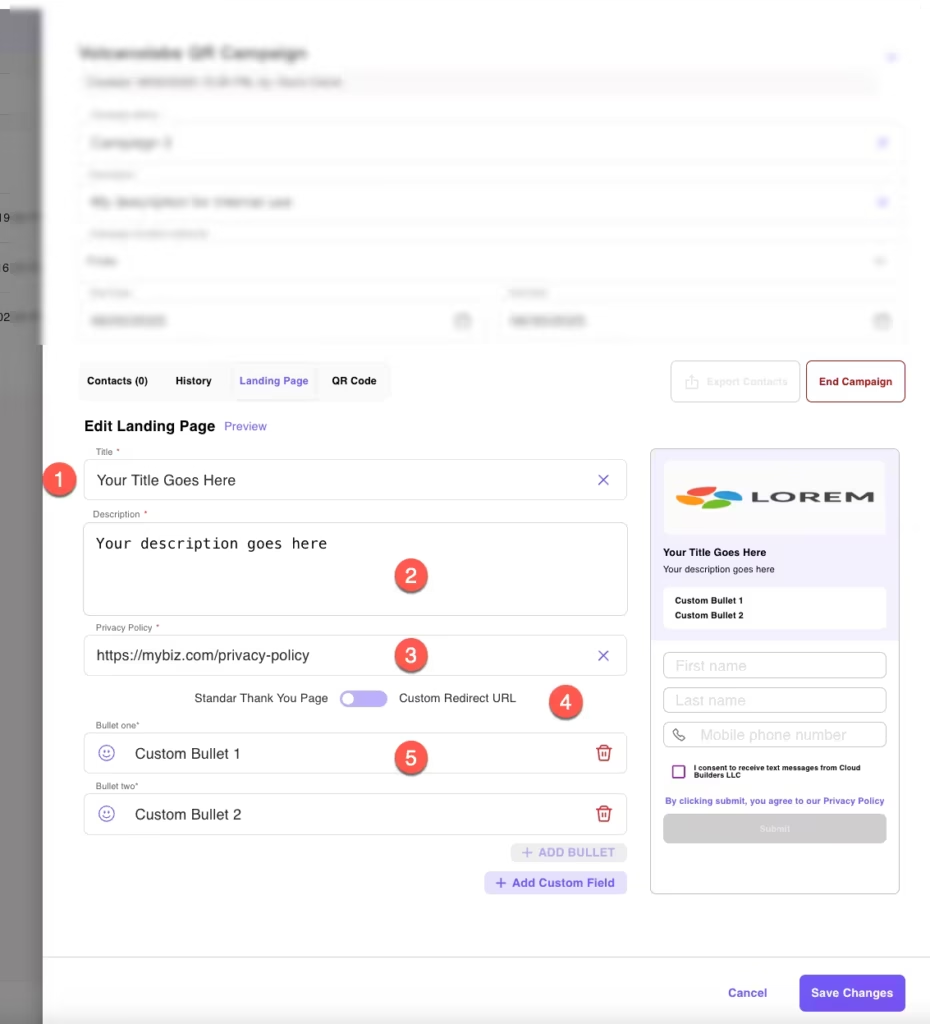
In the bottom section of the QR Campaign creator you will see a sample of the mobile-friendly landing page – the page users see after scanning your QR code:

 
  1. Add a Title
  2. Add a Description
  3. Add a link to your Privacy Policy (required)
  4. Choose the standard Thank You Page or add a custom URL.  This is the page users see after filling in the form.
  5. Optionally you can add custom Bullets
 
Note your Logo and the shape and color of the QR code are set in the Admin Panel.
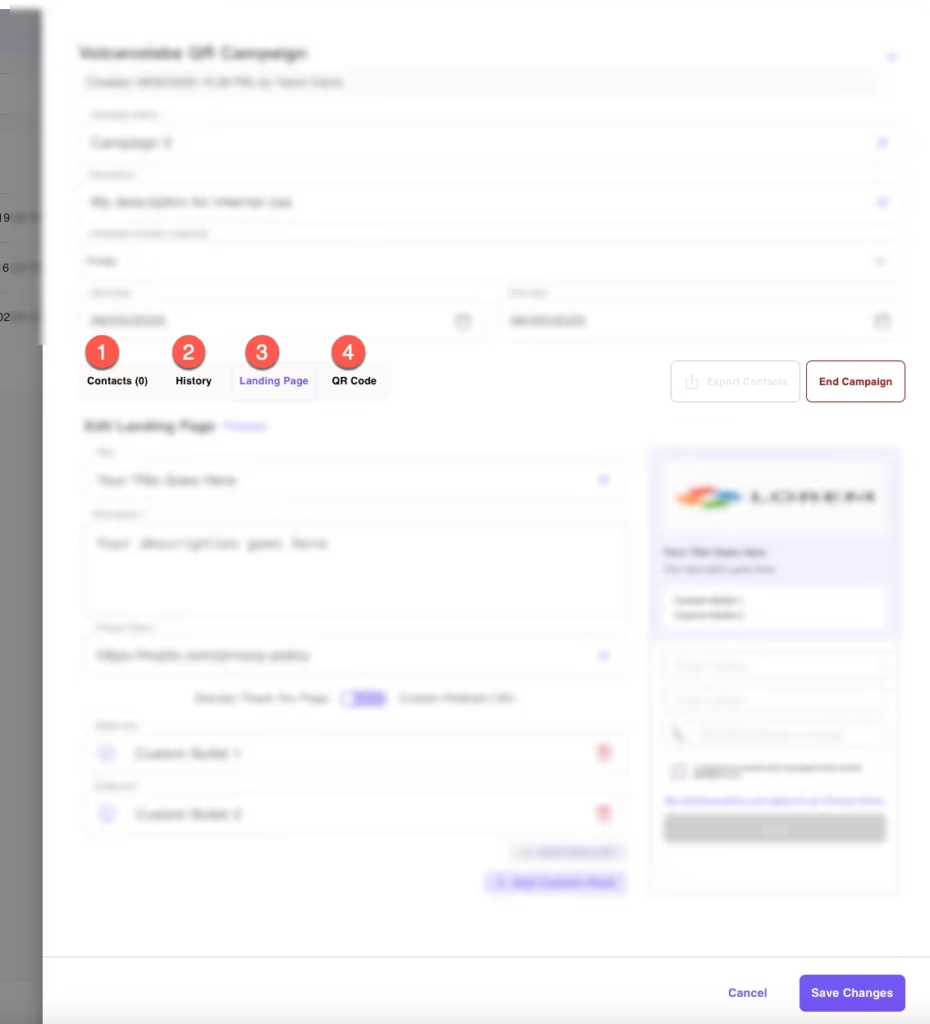
  1. Contacts – As people scan the QR code and submit the form, those contacts are listed here and also in the general Contacts tab with a tag of the Campaign name so you can easily sort and message them.
  2. History includes messages sent to this Campaign
  3. Landing Page – this is the mobile-friendly page users see when they click the QR code
  4. QR Code – the unique QR code for this campaign.  Here you can export or directly print it.